Updates and maintenance windows
Keeping your instance patched is our job, not yours. This page explains exactly when we touch it, what we do first, and how to undo it.
The timings, in one place
Every number on this page, so you never have to hunt for one:
| How long | What it means | |
|---|---|---|
| A new release settles first | 7 days | We do not install a brand-new release on you the day it appears. Security fixes skip this |
| You can go back after an update | 7 days | Bounded by the backup we took just before the change |
| Updates pause after you go back | 30 days | So it does not move forward again while you investigate. Security fixes still apply |
| Your maintenance window | 3 hours long | An update starting inside it may finish just after |
| If you never choose a window | 05:00-08:00 UTC, any day | Never "we leave you alone" |
| Your instance is unreachable | 30-60 seconds | Only while the new version starts |
Each one is explained in full below.
Two separate things get patched, and they work differently:
| Who schedules it | What it touches | |
|---|---|---|
| The server your instance runs on - operating system, kernel, security fixes | Us, daily | Usually nothing inside your app. A few times a year it needs a server restart, which does restart your instance |
| The app release inside it - n8n, or whichever app you run | Your maintenance window | The app itself, which restarts briefly |
The server
Security patching on the operating system runs every day on the machine your instance lives on. You do not schedule it, and almost all of it happens without touching your instance at all.
The exception: restarts
Some updates cannot take effect until the server itself restarts - a new Linux kernel, or a core system library. There is no way to apply those to a running machine, on any hosting provider.
When that happens your instance goes down with the server, typically for one to two minutes, and comes back on its own. In practice this is a few times a year rather than monthly.
What that means for you, stated plainly:
- A workflow running at that moment can be interrupted.
- A webhook arriving at that moment is answered, not dropped. See below — this changed on 14 August 2026.
- A scheduled trigger due during those minutes does not run, and does not catch up afterwards.
- Nothing is lost from your saved work. Workflows, credentials and past execution history live in a database that is untouched by a restart.
Your senders are now told to retry, instead of being hung up on
Until 14 August 2026, a webhook that arrived mid-restart hit a closed port and the sender saw a failed connection. Most senders do not retry that, so the event was simply gone — and it was not our event to lose. It belonged to your customer.
During a restart we plan, your address now answers:
HTTP/1.1 503 Service Unavailable
Retry-After: 120
That is the standard way to say "I am here, come back in two minutes", and Stripe, GitHub, Shopify and Twilio all honour it — as does anything built on a normal HTTP client with retries enabled. The event arrives a couple of minutes late instead of never.
Two honest limits:
- It covers restarts we schedule, which is the overwhelming majority. If the machine fails outright, there is nothing left running to answer politely and the sender sees a refused connection as before.
- A sender that does not retry still loses the event.
Retry-Afteris an instruction, not a guarantee. If a webhook source is critical to you, check whether it retries — and if it does not, put a queue in front of it.
We are still reducing the number of these restarts and making the remaining ones land in a window you choose. That work is not finished, so this page will say so until it is.
That is included on Shared and Dedicated plans, because the server is ours.
We patch the app on your server, but not the operating system underneath it - and nothing turns that on by default. It is two commands, and there is a reboot habit worth knowing about: Keeping the server itself patched.
If you would rather not think about it at all, that is what Shared and Dedicated are for.
Your maintenance window
Your instance page carries a maintenance window: a day of the week and an hour, both in UTC. When a new release of your app is available, we install it inside that window.
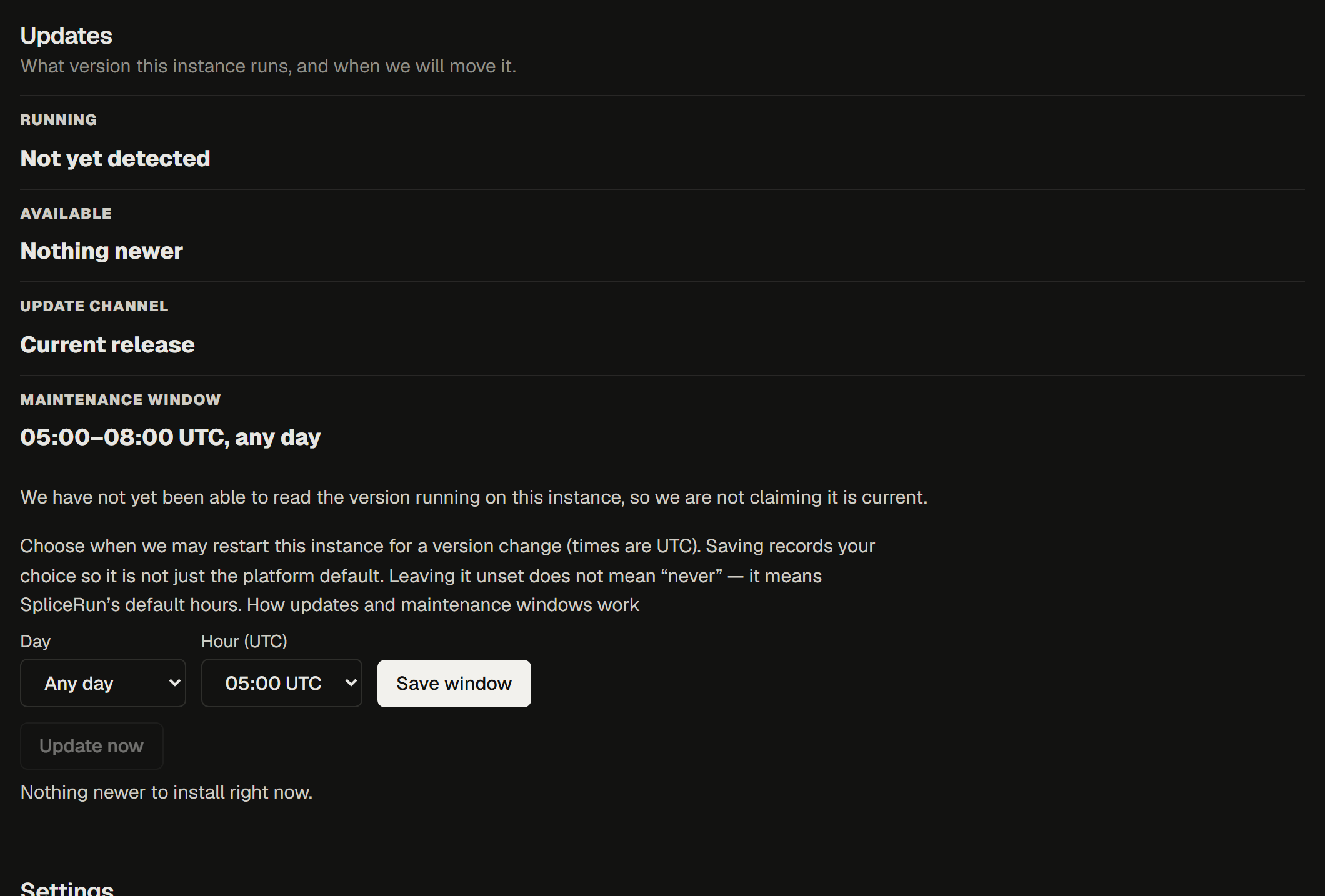
Everything on this page is visible there: what you are running, what is available, when it will be installed, and the two buttons that let you change your mind.
You are asked when you first buy
The question appears in the last step of the deploy wizard, so nobody ends up on a schedule they never chose:
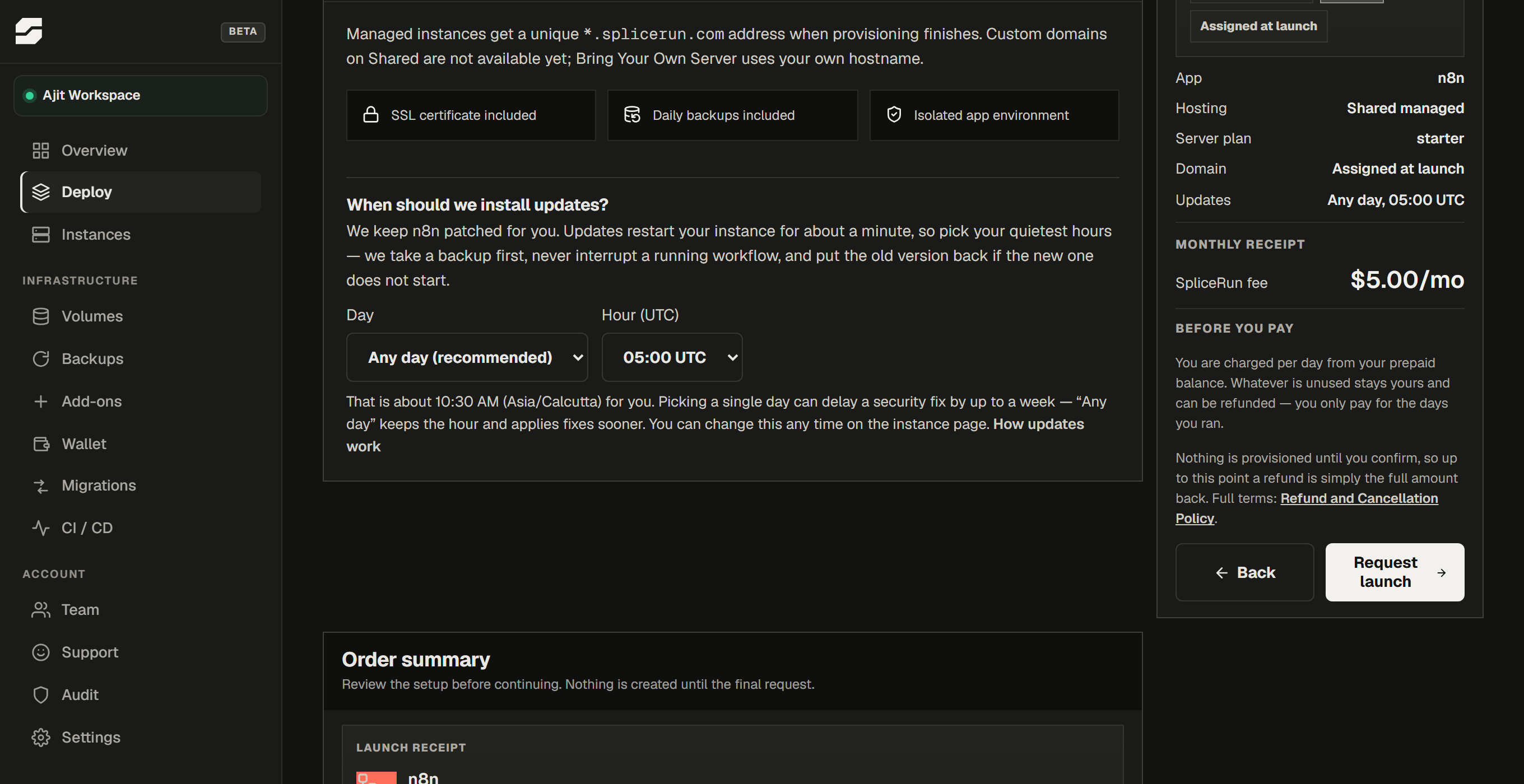
You can change it at any time afterwards on the instance page.
Set it to your quietest hours. The window is three hours long, so an update that starts inside it may finish shortly after it.
Two things worth knowing before you choose:
- It is stored in UTC on purpose. A window stored in local time shifts twice a year with daylight saving, and a maintenance window that moves underneath you is worse than one in an awkward timezone.
- The restart is short. Your instance is unreachable for roughly 30-60 seconds while the new version comes up.
If you never set one
You are still kept up to date. An instance with no window of its own uses the platform default: 05:00 to 08:00 UTC, any day of the week. Those hours are chosen to sit clear of the nightly backup jobs.
"No window set" means "use SpliceRun's hours". It never means "leave this instance alone" - an instance nobody schedules is an instance quietly rotting on an old release, and that is not a service we are willing to sell.
We let a release settle before it reaches you
We do not install a release the day n8n publishes it. A new release waits about a week before we put it on any instance automatically.
This is deliberate, and it is the most useful thing we do for you:
- n8n has a very large user base, so a problem in a release is usually found and reported within days.
- If n8n then publishes a fix, we install the fixed release and you never touch the broken one - we always move you to the newest release available, not to the next one in sequence.
- If a release turns out to be bad, we can withdraw it entirely and no instance will ever be moved to it.
Two things are not delayed:
- Security fixes go out in your next window, without waiting. A known vulnerability is a different trade from a new feature.
- Anything you ask for. Update now installs the newest release immediately - the wait is about what we do unattended, not about what you are allowed to have. If you want to be on the newest release the day it lands, that button is yours.
Your instance page tells you which date a waiting release is scheduled for.
A brand-new instance is built from the version we are shipping today, not from an older one - there are no existing workflows to disturb.
What we do before touching anything
Every version change, scheduled or triggered by you, runs the same way:
- We check nothing is running. If a workflow is mid-execution we leave the instance alone and try again later in the window. We do not interrupt work in progress.
- We take a backup, specific to that instance, immediately before the change.
- We install the new version and wait for the app to come up healthy.
- If it does not come up, we put the old version back automatically. You do not have to be watching, and you do not have to ask.
A failed update that rolled back leaves you exactly where you started. You are told either way - the history panel on your instance records every version change: what it moved from and to, when, and whether it worked.
Security releases
A release that fixes a security issue is not optional, and it does not wait.
A security fix ignores the day you picked. If you chose "Mondays only", that choice applies to ordinary releases - it does not apply to a known vulnerability, which would otherwise sit on your instance for up to a week.
Your hour is still respected. A security fix goes out at the same quiet hour you chose, on whichever day it becomes available. We are not restarting your instance in the middle of your working day because a release was tagged security.
It also skips the week-long settling period described above, and if you have postponed updates it overrides that postponement after 24 hours. A maintenance window is a scheduling choice, not an opt-out.
Major versions always ask first
A move across a major version - 1.x to 2.x, say - is never taken on your behalf, whatever your window says. Majors carry breaking changes that can affect your workflows. Your instance page shows the major as available and waits for you to say yes, and we take a backup before it.
Going back to a previous version
These sit close together and both sound like "undo". They do opposite things:
| You want to undo | Use | What moves | What stays |
|---|---|---|---|
| A version change - the new release broke something | Go back to <version>, on the instance page | The app version | Your workflows, credentials and history |
| A data change - you deleted or broke a workflow | Restore data, on the Backups page | Your workflows, credentials and history | The app version |
Restoring a backup will not move you off a version you dislike, and going back a version will not recover a workflow you deleted.
If a new version causes a problem you can return the instance to the version it was running before. Your workflows, credentials and execution history are not touched - only the application version changes.
- Open the instance detail page.
- Choose Go back to <version>, under the version panel.
- Confirm.
Three things to know:
- The option lasts 7 days. Going back relies on the backup taken immediately before the change, and offering it beyond the life of that backup would be half a promise.
- It goes back one step, to the version immediately before the most recent change - not several.
- Updates then pause on that instance for 30 days, so it does not simply move forward again the following night while you are still investigating. Security releases still apply during that pause.
If you need to stay on an older version for longer than that, tell us - see Getting help.
Moving sooner than your window
You do not have to wait. When a newer release is available, the instance page offers Update now, which runs everything above immediately instead of at the next window.
Where to check
Your instance page is the live answer and the one to trust: the version you are running, the newest one we support, your window in full, whether anything is waiting on you, and the full history of changes.
This page describes how the system behaves. What your instance is doing right now is on your instance page.