Team management
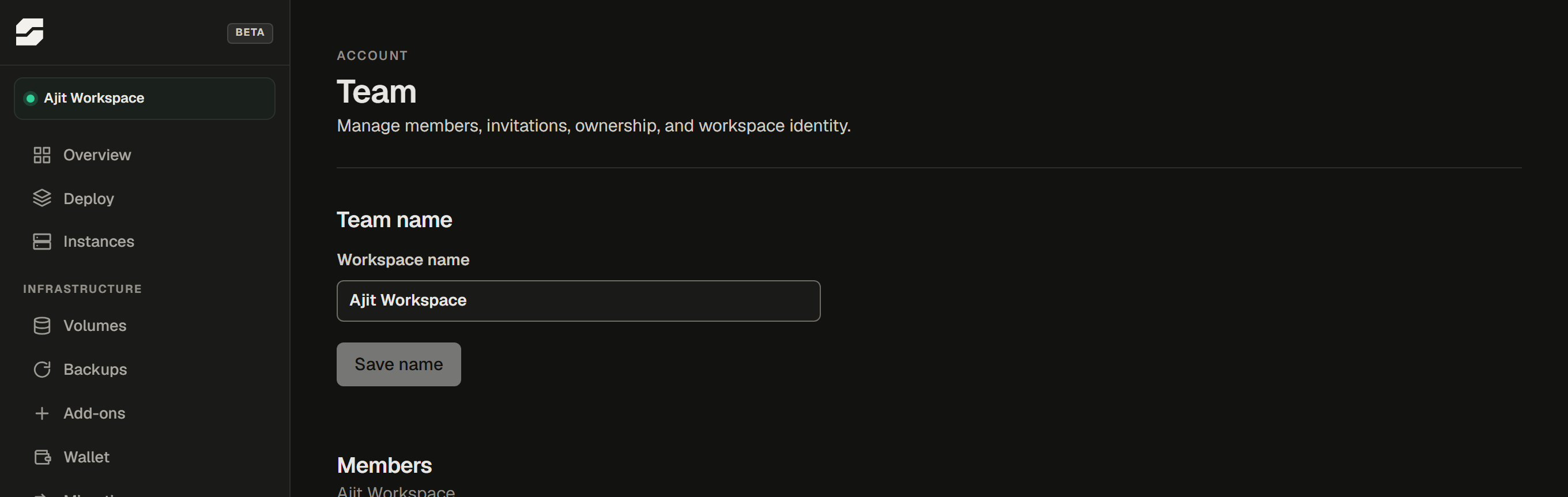
Go to Settings → Team to manage everyone who has access to your SpliceRun workspace.
Roles
Every member has one of three roles:
| Role | What they can do |
|---|---|
| Owner | Everything - billing, member management, ownership transfer, deleting the team |
| Admin | Invite and remove members, rename the workspace, manage instances and add-ons |
| Member | View instances, trigger restores, open support tickets |
There is exactly one owner per workspace. Billing is always tied to the owner's account.
Inviting a member
- Go to Settings → Team.
- Under Invite a member, enter the person's email address.
- They receive an invitation email with a link that expires after 48 hours.
- Once they accept, they appear in the members list as a Member (you can change their role after they join).
Pending invitations are shown separately - you can cancel them before they are accepted.
Changing a member's role
Only the owner can change roles. Click the role label beside any member's name to change it. You cannot demote yourself if you are the only owner.
Removing a member
The owner can remove any member. Removed members immediately lose access - their active session is invalidated within a few seconds. They do not receive a notification.
Transferring ownership
Go to Settings → Team → Transfer ownership, enter the new owner's email (they must already be a member), and confirm. Ownership transfers immediately. You become an Admin after the transfer - you are not removed from the workspace.
The new owner controls billing and can remove any member, including you.
Renaming your workspace
Go to Settings → Team → Team name and enter the new name. This changes the workspace name shown in the dashboard - it does not affect your domain, your instances, or how billing appears on an invoice.
Leaving a team
Go to Settings → Team → Leave team. You cannot leave if you are the only owner - transfer ownership first.
Deleting the workspace
Only the owner can delete the workspace. Deletion is permanent: all instances are deprovisioned, all data is erased, and billing stops at the end of the current period.
Before deleting, export your data from each instance. Data deleted this way cannot be recovered.