Account security
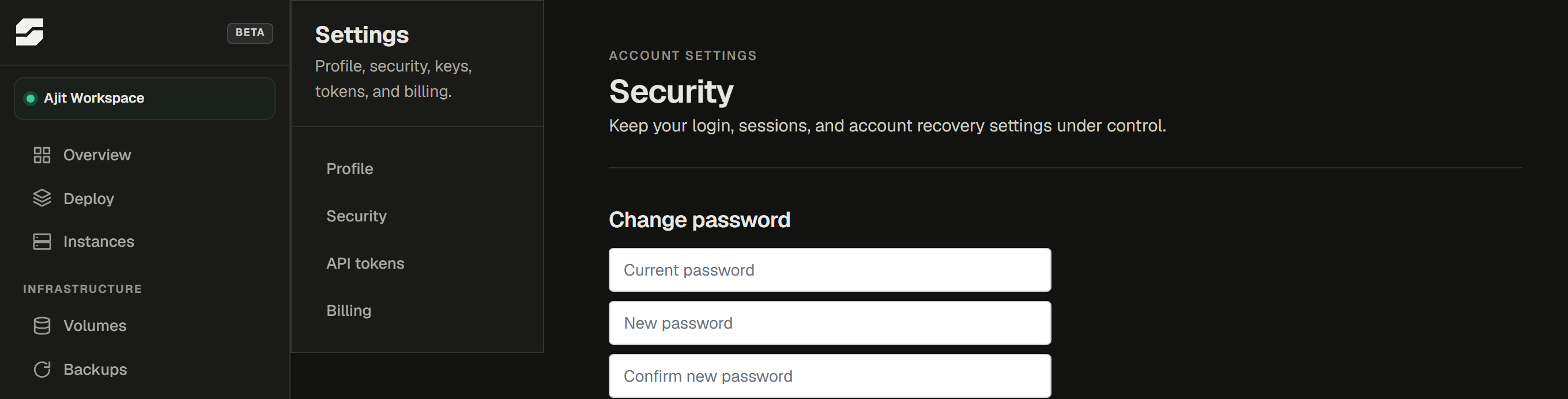
Go to Settings → Security to manage login security for your account.
Two-factor authentication (2FA)

Enabling 2FA requires a time-based one-time password (TOTP) in addition to your password every time you sign in. Any authenticator app works - Google Authenticator, Authy, 1Password, Bitwarden, and most others support TOTP.
To enable:
- Go to Settings → Security → Two-factor authentication.
- Scan the QR code with your authenticator app, or enter the key manually.
- Enter the 6-digit code your app shows to confirm the setup.
To disable, enter your current 6-digit code to prove you still have the device, then confirm.
When you enable 2FA, save the backup codes in a safe place. They are the only way back into your account if you lose access to your authenticator app. SpliceRun cannot bypass 2FA for you.
Changing your password
Go to Settings → Security → Change password. Enter your current password and your new one (minimum 10 characters, must include uppercase, lowercase, a number, and a special character).
If you signed up with GitHub or Google and have no password set, this section lets you set one so you can also sign in with email.
Active sessions
The Active sessions panel lists every device currently signed in to your account, with the browser, IP address, and when the session started.
To sign out a device you do not recognise - or to log yourself out of a device you no longer have - click Revoke next to the session. Your current session is labelled this device and cannot be revoked from here; use Sign out instead.
Deleting your account
Go to Settings → Security → Delete account. Account deletion is permanent.
Before deleting:
- Transfer ownership of any workspaces where you are the only owner, or delete those workspaces first.
- Download any data you need from your instances.
Deleting your SpliceRun account does not cancel active subscriptions automatically - cancel them first from the billing page, or contact support.