Reset your n8n password
If you have lost the password to your n8n instance, you can reset it yourself from your SpliceRun dashboard. You do not need to open a ticket, and your workflows keep running while you do it.
Why n8n's own "forgot password" does not help
n8n's sign-in page has a Forgot my password link, and on a self-hosted instance it usually leads nowhere. To send you a reset email, n8n needs an email server (SMTP) configured inside your instance. Most instances do not have one, so instead of sending anything, n8n tells you to contact your administrator.
On a self-hosted setup, you are the administrator. That is the dead end this page removes.
We can do it because you are already signed in to SpliceRun. Proving who you are is the hard part of any password reset, and you have already done it by logging in here — so there is no email for us to send, and nothing to configure.
Before you start
Two things worth knowing, because neither is obvious:
- Everyone using the old password gets signed out, including you on your other devices, and including anyone on your team who shares that login. They will all need the new password.
- Two-factor authentication is not removed. If you switched on 2FA inside n8n, you will still need your authenticator app after the reset. A password reset only changes the password. If you have lost your 2FA device as well, contact support — that one we do have to handle by hand.
What does not happen: nothing stops, restarts, or is deleted. Your workflows, credentials, executions, and schedules are untouched, and any workflow running at the moment you click the button carries on running.
Reset it
Go to Instances, open the instance you are locked out of, and scroll to Locked out of n8n?
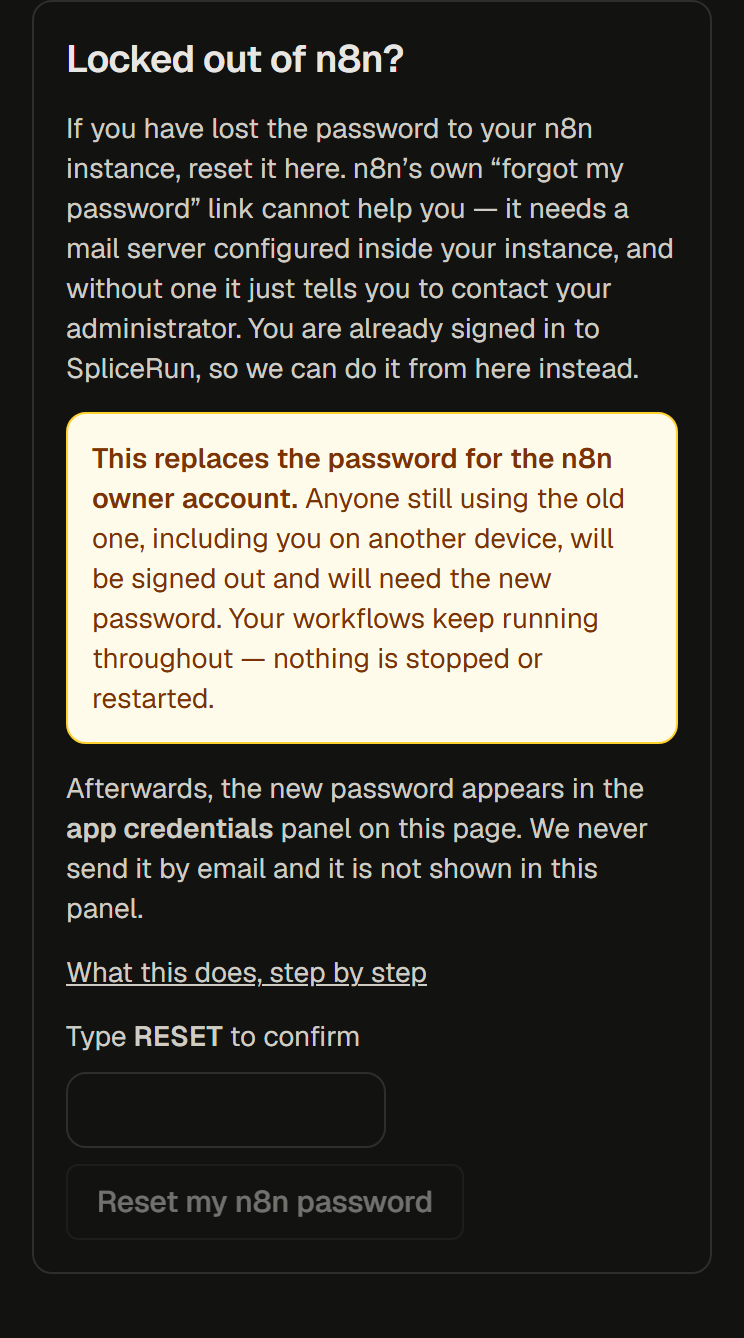
- Type
RESETin the confirmation box. This is deliberate friction — it is the step that stops an accidental click from signing out your whole team. - Click Reset my n8n password.
- Wait a few seconds. The panel tells you when it is done.
- Open the app credentials panel on the same page. Your new password is there.
Then sign in to n8n with your usual email address and that new password.
We recommend changing it to something you choose, from inside n8n, once you are back in (Settings → Personal).
Where the new password appears, and where it does not
The new password is shown only in the app credentials panel on your instance page, and only to signed-in team admins.
We do not email it to you. We do not show it in the reset panel itself, we do not put it in your activity feed, and it is not written to any log. If someone gets a copy of a notification from us, they still do not have your instance.
Who can do this
A team admin. If you are a team member rather than an admin, the panel tells you so and the button is disabled — ask an admin on your team, or contact support.
Where you will not see the button
The panel hides itself when it cannot help, rather than failing after you click:
| Situation | Why | What to do instead |
|---|---|---|
| Bring Your Own Server | The instance runs on your machine, which we do not reach into for this | Reset it on your own server, or contact support |
| Activepieces and other apps | This button understands n8n's accounts only | Contact support |
| The instance is still being set up | There is no app to sign in to yet | Wait for provisioning to finish |
| The instance is suspended | Access is paused while billing is outstanding | Settle the invoice and it returns |
In every one of those cases a lockout is still free support — it is just a ticket rather than a button. See what support covers.
If the reset fails
The panel says so, and your old password is left exactly as it was. Nothing is half-changed: we check that the new password actually works before we report success, and if that check does not pass we stop and change nothing. Contact support and we will do it for you.